BloxNG Controls (All Platforms)
WASD, touch, and gamepad habits for soft-body crashes - with notes that beta UI may shift.
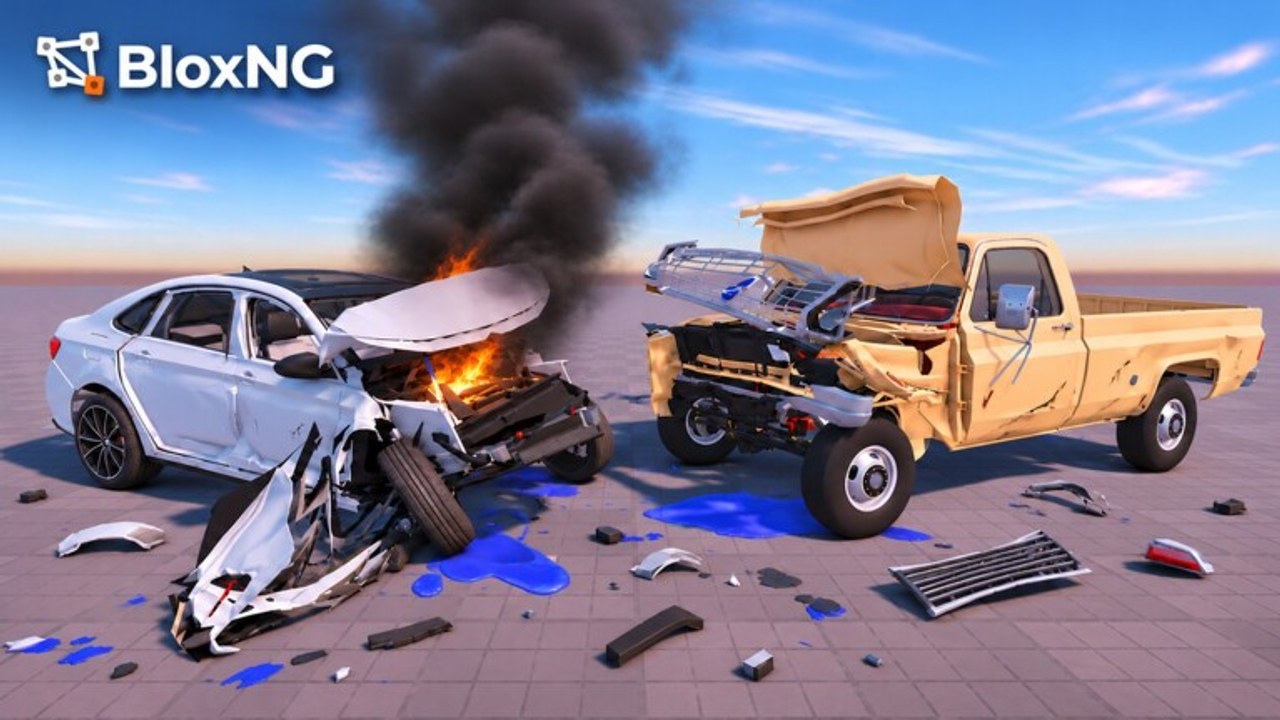
Mastering BloxNG controls is less about memorizing every icon and more about consistent driving inputs when soft-body impacts demand precise speed and angle. This guide covers Desktop, Mobile, Tablet, and Console habits for Deform Dynamics Roblox crash sim. Because the game is beta, on-screen labels and button positions can move after patches such as Update 1 or the Mystery Update window. When the HUD changes, the physics still care about the same inputs: throttle, steer, brake, and camera.
New players should skim Getting Started first, then return here while practicing the techniques in Crash Physics. Pair control drills with the Impact Checklist before you chase showcase crumples.
Desktop controls
Typical Roblox vehicle controls on PC/Mac:
- W / Up Arrow - accelerate / throttle forward.
- S / Down Arrow - brake or reverse (context depends on vehicle state).
- A / Left Arrow and D / Right Arrow - steer.
- Mouse - orbit or look with the camera; scroll to zoom if enabled.
- Space / Shift / other binds - may map to handbrake, camera reset, or interaction depending on the current beta build. Check the in-game controls panel after every major patch.
Desktop tips for crashes
- Set approach speed with short throttle taps instead of holding W the entire runway.
- Steer into the intended crumple zone early - last-second flicks create messy angles.
- Lock camera on the impact side a second before contact so you can judge panel fold.
- After a wreck, release inputs; fighting a broken drivetrain teaches little.
- If wheels snap or the engine fails, treat the car as a photo subject, then reset or grab another vehicle when the beta flow allows.
Desktop players usually have the easiest time practicing 30 / 45 / 90 degree approaches because keyboard steering is discrete and mouse camera is precise. Use that advantage before you farm cash routes from Earn Cash.
Mobile and tablet controls
On phones and tablets, expect on-screen joysticks or tap zones for throttle and steering, plus touch-drag camera. Exact widget layout is beta-sensitive - Deform Dynamics may rearrange pads after updates.
Mobile / tablet habits
- Drive with thumbs relaxed; death-gripping the stick makes micro-angle corrections harder.
- Widen your turn radius before a planned crash so you are not swiping camera and steer at the same time.
- Tap brake earlier than you would on desktop; touch latency plus soft-body commitment needs more runway.
- After glass shatters or doors hang, pause before another swipe - confirm the deformation result.
- Landscape orientation usually helps for judging curb height and wall contact points.
- If UI chrome covers a sightline, adjust camera first; do not invent a new crash line just to see past a button.
Tablet players often get a middle ground: larger touch targets than phones, still less precision than mouse. Use tablets for exploratory map drives after New Map & Airbags drops, then refine angles on desktop if you clip content.
Console controls
Console pads follow familiar Roblox vehicle patterns:
- Left stick - steer.
- Right stick - camera.
- Triggers / bumpers - throttle, brake, or secondary actions depending on the beta mapping.
- Face buttons - interact, reset camera, or menu shortcuts when available.
Console tips
- Lower camera sensitivity until crash timing feels readable, then raise it for freestyle sessions.
- Feather the throttle trigger; soft-body outcomes change a lot between 60% and 100% commit.
- Use slight left-stick pre-aim so the nose points at the crumple target before you fully accelerate.
- If vibration cues exist in your build, treat heavy rumble as a hint you committed hard - useful feedback while learning.
- Keep party size in mind: servers max at 10, so call your crash lanes in voice or chat when lobbies are full.
Camera discipline across platforms
Great soft-body clips need the impact in frame. Before each intentional crash:
- Position camera on the expected fold side (front quarter, door, rear).
- Avoid extreme zoom that hides wheels snapping off.
- Re-center after rolls so you can see hanging doors and shattered glass.
- On mobile, a single deliberate drag beats frantic multi-swipes mid-air.
Camera work pairs with physics literacy from Crash Physics. If you cannot see the contact point, you cannot learn why metal folded the way it did.
Crash-angle control drills
Spend ten minutes on a quiet curb or wall:
- Square hit (about 90 degrees) at low speed - watch a deep frontal crumple.
- Glancing hit (about 20-30 degrees) - scrape and shear without full fold.
- Offset hit - contact one corner to hang a door or bias wheel snap.
- Speed ladder - same angle at three speeds; note engine/tyre break thresholds.
- Weight swap - repeat with a heavier unlock once cash allows.
Log what felt controllable on your device. Mobile drivers may prefer slightly lower speeds for the same visual quality desktop gets at higher speed.
Beta UI caveats
- Control help screens can rename actions after patches.
- Airbags and map-specific interactions from Update 1 may add prompts - re-open settings when New Map & Airbags content lands.
- If a bind stops working, check Roblox experience permissions and in-game settings before assuming a bug.
- Report persistent input issues through channels listed on Official Links and discuss with others on Discord.
Etiquette while practicing controls
In a 10-player server, do not repeatedly block spawn exits with wrecked cars if others are learning too. Share lanes, celebrate cool crumples, and hop servers when free-drive practice needs empty asphalt. More community norms live on the Players Hub.
Related pages
- Getting Started - first-hour flow.
- Crash Physics - why inputs create specific deformations.
- Earn Cash - turn clean control into progression.
- Impact Checklist - pre-crash control and setup list.
- Guides Hub - full tutorial map.
Dial in your platform, respect beta UI drift, and let deliberate inputs - not button spam - write every soft-body story.
Frequently Asked Questions
Quick answers for BloxNG crash physics, codes, scripts, and updates.
What are the default desktop driving keys in BloxNG?
Expect typical Roblox vehicle binds: WASD or arrows to drive, mouse for camera. Always confirm the in-game controls panel because the beta UI can change.
How do I drive on mobile?
Use on-screen throttle and steering widgets plus touch camera. Take wider approaches before crashes and expect layout tweaks after updates.
Any console-specific advice?
Feather triggers for speed control, lower camera sensitivity while learning angles, then raise it for freestyle. Call crash lanes in busy 10-player servers.
Why do my crashes look random?
Usually speed and angle are inconsistent. Run the crash-angle drills above, then study Crash Physics for soft-body detail.
Controls feel different after an update - is that normal?
Yes in beta. Re-check settings after Update 1, Mystery Update, or any patch notes on the Updates Hub.